
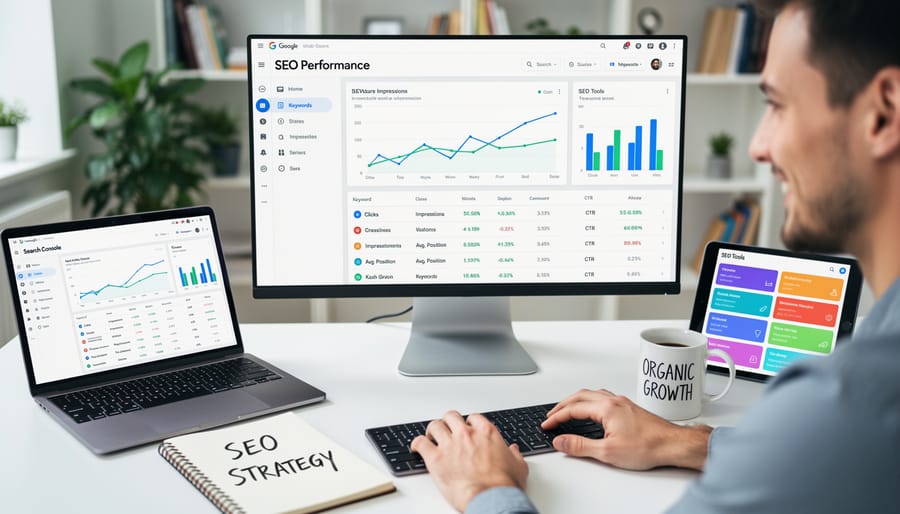
Google’s free SEO tools sit right in front of most website owners, yet they remain drastically underutilized. Search Console alone can reveal exactly which pages Google refuses to index, which search queries bring visitors to your site, and where your mobile experience falls short. These aren’t nice-to-have features. They’re the difference between guessing at SEO strategy and making decisions based on actual performance data.
The challenge isn’t access. Every tool we’ll cover is completely free. The real issue is knowing which tools matter for your specific business goals and how to extract meaningful insights without getting lost in data overload.
Most small business owners waste hours analyzing vanity metrics that don’t move the needle. You don’t need to track every possible data point. You need to focus on the handful of metrics that actually correlate with revenue growth and customer acquisition.
Google provides a surprisingly complete SEO toolkit that covers everything from technical site health to keyword research to performance tracking. But here’s what nobody tells you: you can get 80% of the value by mastering just two core platforms and spending 15 minutes per week on routine monitoring.
This guide cuts through the noise. You’ll learn which Google SEO tools deliver the highest return on your time investment, how to set them up correctly from day one, and which specific reports to check when you need actionable answers fast.
Why Google’s Own Tools Should Be Your Starting Point
When you’re ready to improve your website’s search rankings, the smartest move is to start with tools built by Google itself. These aren’t just free alternatives to paid software. They’re your direct line to the search engine that matters most.
Google Search Console, Google Analytics, and other native tools give you data straight from the source. While third-party platforms make educated guesses about search volume and ranking factors, Google’s tools show you exactly how the search engine sees your site. You’ll discover which queries bring visitors to your pages, identify technical issues that hurt your rankings, and understand how real users interact with your content.
Think about it this way: you wouldn’t rely on someone’s best guess about your bank account balance when you can check the real numbers yourself. The same logic applies here.
Starting with Google’s native tools builds a solid foundation for everything else. You’ll learn which keywords actually drive traffic to your site, not just which ones look promising in a research tool. You’ll spot crawl errors, mobile usability problems, and security issues before they tank your rankings. And you’ll track conversions that matter to your business, whether that’s online sales, form submissions, or phone calls.
Many small business owners jump straight to expensive SEO software, thinking they need advanced features right away. But that’s like buying professional camera equipment before learning basic photography. Master the fundamentals with Google’s tools first. Once you understand what the data means and how to act on it, you’ll know exactly which paid tools (if any) actually make sense for your situation.
Google Search Console: Your SEO Command Center
Performance Insights That Drive Real Results
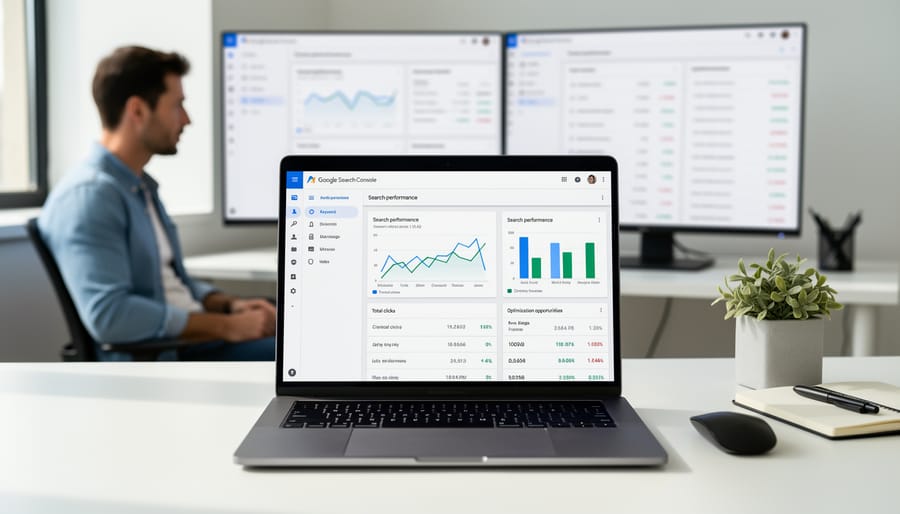
The Performance report in Google Search Console shows you exactly which search queries bring visitors to your site and how your pages rank for those terms. This data reveals opportunities most small businesses miss completely.
Start by filtering for queries where you rank between positions 8 and 20. These are your low-hanging fruit. You’re already visible to Google for these searches, but you’re buried on page two or three. A few strategic improvements to these pages can push them onto page one, where they’ll actually drive traffic.
Next, sort by impressions to find queries where your page shows up frequently but gets few clicks. Low click-through rates usually mean your title tag or meta description needs work. Make them more compelling and specific to what searchers actually want.
The Pages tab tells you which content is losing ground. If a page that once performed well shows declining clicks over three months, it probably needs a refresh. Update outdated information, add new examples, or expand thin sections.
Take Sarah’s local bakery as an example. She noticed her “custom birthday cakes” page ranked 12th and got 2,000 impressions monthly with only 40 clicks. She rewrote her title to include her city name and added customer photos to the page. Within six weeks, she moved to position 6 and her clicks jumped to 340. That’s real revenue from one simple optimization informed by performance data.
Fixing Issues Before They Hurt Your Rankings
Google Search Console’s Coverage and Core Web Vitals reports act as your early warning system, catching problems before they tank your visibility. The Coverage report shows which pages Google can’t index and why. Click into any error category to see affected URLs. Common issues include “Submitted URL marked ‘noindex'” (you’re accidentally blocking pages) or “Redirect error” (broken redirect chains). Fix these by removing noindex tags from important pages or correcting redirect paths in your .htaccess file.
The Core Web Vitals report reveals speed and usability problems. If your Largest Contentful Paint exceeds 2.5 seconds, your images are probably too large. Compress them before uploading. Poor Cumulative Layout Shift scores? You’re missing width and height attributes on images, causing content to jump around. Since Core Web Vitals affect rankings these fixes directly impact your position in search results.
A simple approach: tackle errors showing more than 10 affected pages first. One client found 47 pages blocked by an accidental robots.txt rule. Removing one line fixed everything within days.
Submitting and Monitoring Your Sitemap
Submitting your sitemap through Search Console takes just a few minutes. Navigate to the Sitemaps section in the left menu, paste your sitemap URL (typically yoursite.com/sitemap.xml), and click Submit. Google will begin processing it immediately.
Once submitted, monitor the Coverage report to track indexing status. This shows how many pages Google discovered versus how many it successfully indexed. You’ll see errors flagged in red, warnings in yellow, and successfully indexed pages in green.
Check this report weekly during the first month, then monthly after that. If pages aren’t getting indexed, the report tells you exactly why. Common issues include blocked resources, redirect chains, or pages marked as noindex. Fix these problems promptly to improve your crawl efficiency.
The Page Indexing report (replacing the older Coverage report in newer Search Console versions) provides even more granular data. You can filter by specific error types and see which pages need attention. This proactive monitoring prevents indexing problems from hurting your visibility.
Google Analytics 4: Understanding What Happens After the Click
Tracking SEO Success Beyond Rankings
Rankings tell you where you stand, but conversions tell you if SEO is actually working for your business. Google Analytics 4 makes it possible to track which organic search visitors turn into customers, subscribers, or leads.
Start by connecting your website goals to measurable actions in GA4. Here’s how to set up basic SEO conversion tracking:
- Navigate to Admin in your GA4 property, then select Events under Data display.
- Click “Create event” and define your conversion action (form submission, purchase, phone click, etc.).
- Toggle “Mark as conversion” to tell Google this event matters to your business.
- Add “Organic Search” as a dimension in your reports to isolate SEO-driven conversions.
Once tracking is live, focus on your highest-performing organic landing pages. Use the Landing Page report in GA4, filtered by organic traffic, to identify which pages bring in actual business. You might discover a blog post generates more qualified leads than your homepage.
Pay attention to engagement metrics too. Google uses signals like time on page, scroll depth, and pages per session to judge content quality. In GA4, check your Engagement overview for organic sessions. If visitors bounce immediately or spend seconds on your pages, Google notices. Improving those metrics often lifts rankings naturally.
Track these numbers monthly. A small e-commerce client we worked with discovered their product comparison pages had 3x higher conversion rates than category pages, so they created more comparison content and saw a 47% increase in organic revenue within four months.
Finding Content Opportunities in Your Data
Your GA4 data holds untapped content opportunities that most business owners miss. The key is knowing where to look.
Start with the Landing Pages report under Reports > Engagement. Sort by sessions to identify your highest-traffic pages, then add conversion rate as a secondary metric. Pages with strong traffic but conversion rates below your site average are prime candidates for optimization. Maybe the content needs clearer calls-to-action, or perhaps the topic attracts the wrong audience. Either way, you’ve found a page worth improving.
The Engagement section reveals which content keeps visitors on your site longest. Check the Pages and Screens report and sort by average engagement time. Content that holds attention but doesn’t rank well in search deserves better optimization. Add internal links to these pages from higher-authority content, update the title tags, or expand the topic based on related queries you’re already ranking for.
User search behavior in the Site Search report (if you’ve enabled it) shows exactly what visitors can’t find on your site. These are your content gaps. If people repeatedly search for “shipping policy” or “size guide” and you haven’t created dedicated pages for those topics, you’re missing obvious opportunities.
The Pages and Screens report also helps identify underperforming content. Pages with high bounce rates and low engagement might need updates, consolidation with similar content, or redirection if they’re truly obsolete. Your data tells you which pages earn their place on your site and which ones drain resources.
Google Keyword Planner: Research Without the Price Tag
Google Keyword Planner remains one of the most valuable free tools in your SEO arsenal, even if you’re not running paid ads. Originally designed for AdWords advertisers, this tool provides direct access to Google’s search data, helping you understand what your potential customers are actually typing into search.
Getting started is straightforward. Sign into Google Ads, navigate to Tools & Settings, and select Keyword Planner under the Planning section. You’ll find two main options: “Discover new keywords” for brainstorming content ideas, and “Get search volume and forecasts” for analyzing keywords you already have in mind.
Here’s what makes this tool particularly useful for small businesses. You can enter a product, service, or topic related to your business and receive hundreds of related keyword suggestions along with their average monthly search volumes. For example, a local bakery owner might start with “custom cakes” and discover that “birthday cake delivery” gets 10,000 monthly searches while “corporate event cakes” shows 1,200 searches. This data helps you prioritize which content to create first.
The tool also reveals seasonal trends, competition levels, and suggested bid ranges. While those bid amounts are meant for advertisers, they indicate commercial intent. Higher suggested bids often mean searchers are ready to buy.
The data helps you make smarter decisions about which pages to create on your website and which topics deserve blog posts.
There are limitations, though. Non-advertisers see search volume ranges rather than exact numbers. The tool focuses on paid search intent, so you might miss long-tail informational queries that drive organic traffic. Geographic data can be broad unless you narrow your targeting settings carefully.
A practical workaround: Use Keyword Planner for initial research and volume estimates, then cross-reference findings with Google Search Console data from your actual website performance. This combination gives you both market potential and real-world validation of what works for your specific site.
PageSpeed Insights: Speed Optimization Made Simple
PageSpeed Insights gives you a straightforward diagnosis of what’s slowing down your website. Enter your URL, and within seconds you’ll see a performance score from 0 to 100, along with specific recommendations for improvement.
The tool analyzes both mobile and desktop versions of your site, which matters because Google now uses mobile-first indexing. You’ll see real data from actual Chrome users visiting your pages, not just lab simulations. This means you’re looking at genuine user experiences, not theoretical scenarios.
Core Web Vitals are the measurements Google cares most about: Largest Contentful Paint (how quickly your main content loads), First Input Delay (how soon users can interact with your page), and Cumulative Layout Shift (whether elements jump around during loading). PageSpeed Insights breaks down each metric and shows you exactly where you’re falling short.
The recommendations section tells you what to fix first. You might see suggestions like compressing images, removing unused JavaScript, or enabling text compression. Each recommendation includes an estimated time savings, so you know which fixes deliver the biggest impact.
Here’s what makes this tool valuable: you don’t need a developer to understand the results. If your images are too large, you can compress them before uploading. If render-blocking resources are the problem, you can research plugins or simple code changes that address it.
A landscaping company improved their score from 42 to 87 by compressing their project photos and switching to a faster hosting provider. Their bounce rate dropped 28% within two weeks. The connection between site speed and user behavior is direct and measurable.
Run PageSpeed Insights monthly to track your progress and catch new issues before they hurt your rankings.
Google Business Profile: Local SEO’s Secret Weapon
Your Google Business Profile might be the most underused SEO tool at your disposal. If you serve customers at a physical location or within specific service areas, this free platform directly influences whether potential customers find you when they search for businesses like yours nearby.
Think about how you search. When someone types “plumber near me” or “coffee shop downtown,” Google shows a map with three business listings at the top. That’s the Local Pack, and your Business Profile determines if you appear there. This placement sits above traditional organic results, making it prime real estate for local businesses.
Setting up your profile takes about 15 minutes. Claim your business, verify your location, and fill out every field. Add your hours, phone number, website, and service areas. Upload high-quality photos of your storefront, products, or team. The businesses that show up first have complete profiles with regular updates.
But here’s where most businesses stop short: ongoing optimization. Post weekly updates about specials or new inventory. Respond to every review, good or bad. Upload fresh photos monthly. Google rewards active profiles with better visibility.
Sarah’s bakery saw this firsthand. After claiming her profile and posting daily specials each morning, her “get directions” clicks increased 180% in two months. She didn’t change her website or run ads. She just kept her Business Profile current.
Check your insights regularly to see how customers find you, what actions they take, and how you compare to competitors in your area.
Complementary Tools That Extend Google’s Capabilities
While Google’s free tools provide a solid foundation, several complementary platforms can fill specific gaps without breaking the bank. These third-party options integrate well with your existing Google data to deliver insights you won’t find elsewhere.
Ubersuggest stands out as an accessible option for keyword research that goes beyond what Google Keyword Planner offers. It shows search volume, competition levels, and content ideas in a format that’s easier to digest than raw Google data. The free version includes daily search limits that work fine for small businesses planning monthly content calendars.
Answer The Public visualizes the questions people ask about your topics. Instead of sifting through spreadsheets, you get wheel diagrams showing exactly what your audience wants to know. This makes content planning more intuitive and helps you match user intent better than guessing.
For backlink analysis, Ahrefs Webmaster Tools provides a free alternative to paid services. Google Search Console shows some link data, but Ahrefs gives you deeper insights into link quality and competitor backlink profiles. You can spot opportunities your competitors are using without the premium price tag.
| Tool Name | Primary Function | Best Use Case |
|---|---|---|
| Ubersuggest | Keyword research and content ideas | Monthly content planning and keyword discovery |
| Answer The Public | Question-based search visualization | Understanding customer questions and pain points |
| Ahrefs Webmaster Tools | Backlink analysis | Monitoring link quality and finding link opportunities |
| MozBar | On-page SEO metrics | Quick competitive analysis while browsing |
The MozBar browser extension adds another layer by showing domain authority and page metrics directly in your search results. This helps you quickly assess whether you can realistically compete for specific keywords.
The key is using these tools to supplement, not replace, your Google setup. Start with Google’s core platforms, then add one or two complementary tools based on your biggest knowledge gaps.
Building Your SEO Workflow Around These Tools
Success with Google’s SEO tools isn’t about checking them constantly. It’s about building a sustainable routine that catches problems early and tracks your progress without consuming your entire workday.
Start your month with a comprehensive review. Log into Google Search Console and check the Performance report to compare the last 30 days against the previous period. Export this data. Then move to Analytics and review your organic traffic trends, top landing pages, and conversion rates. Look for patterns. Are certain pages losing traffic? Have click-through rates dropped on specific queries? This monthly check-in gives you the big picture and helps you spot trends before they become serious problems.
Your weekly tasks should take 15-20 minutes tops. Check Search Console for any new coverage issues or manual actions. Review your most recent blog posts or product pages to see if they’re getting indexed. Quick and simple. If you submitted new content to Search Console, verify it’s been crawled. This weekly habit prevents the nightmare scenario where you discover three months later that half your site wasn’t even indexed.
Daily? Keep it minimal. Unless you’re running time-sensitive campaigns, daily monitoring creates unnecessary stress. However, if you have Google Analytics open for other reasons, spend 30 seconds glancing at yesterday’s organic sessions. Any dramatic drops deserve investigation.
The real workflow hack is setting up email alerts in Search Console. Configure notifications for critical issues like security problems, manual actions, or sudden indexing drops. You’ll receive immediate alerts without logging in daily.
One small business owner told us she schedules her monthly review for the first Friday of each month, weekly checks every Monday morning, and ignores the tools otherwise unless she gets an alert. This system freed up hours while actually improving her SEO results because she focused on fixing real issues instead of obsessing over minor daily fluctuations.

Google’s free SEO tools provide everything you need to build a strong foundation for your online visibility. You don’t need expensive software subscriptions or enterprise-level platforms to compete. Search Console, Analytics, Business Profile, PageSpeed Insights, and the other tools we’ve covered give you direct access to the same data and insights that major brands use to refine their strategies.
The key is getting started. Don’t try to master every tool at once. Begin with Google Search Console to understand how Google sees your site and what technical issues need attention. Once you’re comfortable monitoring your search performance, add Analytics to track user behavior. Then expand to Business Profile if you serve local customers, and use PageSpeed Insights to improve loading times. This gradual approach prevents overwhelm and builds your confidence with each tool.
The data these tools provide only creates value when you act on it. A weekly check-in with Search Console can catch indexing problems before they hurt your rankings. Monthly Analytics reviews help you understand which content resonates with your audience. Regular Business Profile updates keep local customers engaged.
If you’d rather focus on running your business while experts handle the technical implementation, that’s where I-SEO Media Design comes in. We help businesses like yours make sense of these tools and turn the insights into measurable growth. Whether you want hands-on guidance or complete management of your SEO strategy, we’re here to help you succeed.